
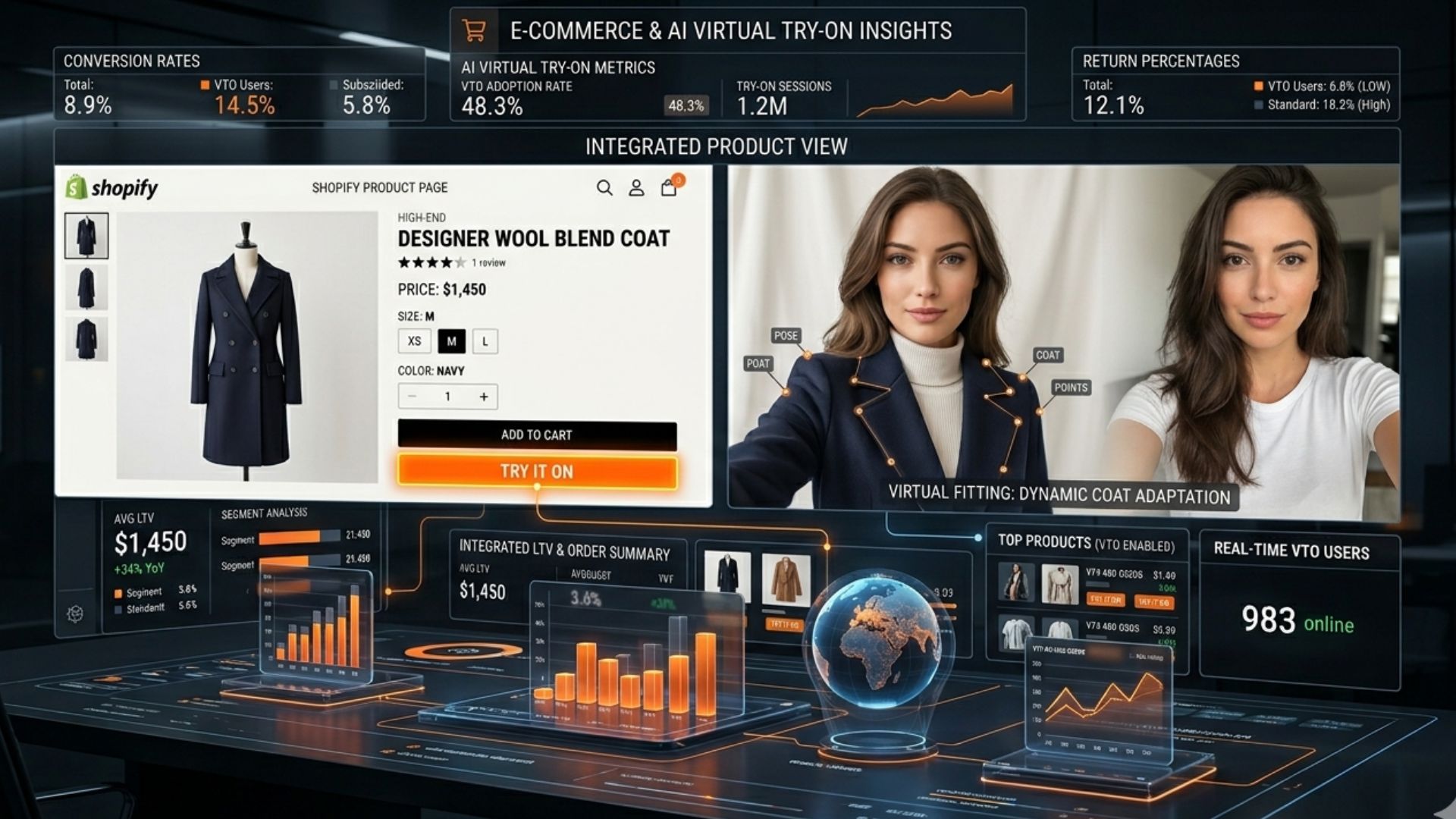
If your team can edit a PDP template and add one backend secret, you can get the TryItOn retailer widget live quickly. This guide covers exactly what to do, where to do it, and what to verify before launch for Shopify themes, Magento / Adobe Commerce PDPs, and similar storefront stacks.
The widget is designed for retailer PDP pages. It opens a TryItOn modal directly on your store, reads product context from your page, and keeps the shopper in your funnel.
What Shoppers Will See
Once installed, the widget lets shoppers upload a selfie and view a realistic try-on result without leaving your store. Below are example before-and-after results using the same visual assets already featured on the TryItOn homepage.




Before You Start
Platform access
You need access to your TryItOn backend environment and the retailer PDP template where the widget will mount.
Runtime versions
Use Node.js 20.19.0+ and npm 10+. The project reads the expected Node version from .nvmrc.
Retailer metadata
Have your retailer ID, approved origins, and core PDP product fields ready: SKU, image URL, and optionally variant, product name, price, and currency.
Step 1: Prepare the Backend
Start inside the TryItOn app environment. Apply the widget schema, add the session secret, and seed the retailer record plus allowed origins.
Apply the widget migration
npm run db:pushAdd the widget secret to .env
WIDGET_SESSION_SECRET=replace-with-high-entropy-secretSeed one retailer and its approved origins
WIDGET_RETAILER_EXTERNAL_ID=ret_demo \
WIDGET_RETAILER_NAME="Demo Store" \
WIDGET_RETAILER_MONTHLY_CAP=500 \
WIDGET_RETAILER_ORIGINS="https://shop.demo.com,https://www.shop.demo.com" \
npm run widget:seed
What this does: it creates the retailer identity the widget expects, limits usage for the account, and prevents unauthorized domains from opening sessions.
Step 2: Add the Widget Mount to Your PDP
On the retailer product detail page, add the widget container where you want the Try It On button to appear.
PDP placeholder markup
<div
  id="tryiton-widget"
  data-retailer-id="ret_demo"
  data-sku="sku_123"
  data-image-url="https://cdn.shop.demo.com/products/sku_123.jpg"
  data-variant-id="blue_m"
  data-product-name="Linen Shirt"
  data-price="69.00"
  data-currency="USD"
></div>
The widget reads product context from these data-* attributes. The minimum required fields are listed below, but the extra context improves the shopper experience and analytics quality.
Step 3: Load the Widget Script
Add the retailer script once on the PDP so the widget can initialize automatically.
Load the client script
<script async src="https://cdn.tryiton.app/widget/v1.js"></script>Shopify Quick Start
If your store runs on Shopify, the fastest path is to add the widget mount to your product template and load the script once. Then, on variant change, update the widget attributes and remount it. For merchant-facing positioning, pair this setup guide with our virtual try-on for Shopify landing page.
Liquid mount example for Shopify PDP
<div
  id="tryiton-widget"
  data-retailer-id="{{ settings.tryiton_retailer_id }}"
  data-sku="{{ product.selected_or_first_available_variant.sku | escape }}"
  data-variant-id="{{ product.selected_or_first_available_variant.id }}"
  data-image-url="{{ product.selected_or_first_available_variant.featured_image | image_url: width: 1200 | prepend: 'https:' }}"
  data-product-name="{{ product.title | escape }}"
  data-price="{{ product.selected_or_first_available_variant.price | money_without_currency | replace: ',', '' }}"
  data-currency="{{ shop.currency }}"
></div>
Variant sync and remount example
<script>
  (function () {
    var mount = document.getElementById('tryiton-widget');
    if (!mount) return;

    function remount() {
      mount.removeAttribute('data-tryiton-mounted');
      mount.innerHTML = '';
      window.TryItOn?.init({
        retailerId: mount.getAttribute('data-retailer-id')
      });
    }

    var readyTimer = setInterval(function () {
      if (window.TryItOn?.init) {
        clearInterval(readyTimer);
        remount();
      }
    }, 50);

    document.addEventListener('variant:change', function (event) {
      var variant = event.detail && event.detail.variant;
      if (!variant) return;

      mount.setAttribute('data-sku', variant.sku || '');
      mount.setAttribute('data-variant-id', String(variant.id || ''));
      mount.setAttribute('data-image-url', variant.featured_image && variant.featured_image.src ? variant.featured_image.src : mount.getAttribute('data-image-url') || '');
      mount.setAttribute('data-price', (variant.price / 100).toFixed(2));
      remount();
    });
  })();
</script>
Shopify implementation model: phase 1 is a theme snippet or section-level integration on the PDP. Phase 2 is a proper Shopify app extension block so merchants can enable it from Theme Customizer without editing theme files manually.
Magento / Adobe Commerce Quick Start
If your storefront runs on Magento Open Source or Adobe Commerce, the cleanest rollout is to place the widget inside the product view layout, render the mount in a PHTML template, and keep CSP approvals in the theme or module scope. The platform-specific buying context lives on our Magento enterprise page.
Layout XML example for the PDP
<referenceContainer name="product.info.main">
  <block
    class="Magento\Framework\View\Element\Template"
    name="tryiton.widget"
    template="Vendor_Module::tryiton/widget.phtml"
    after="product.info.addtocart"
  />
</referenceContainer>
PHTML mount example with product data
<?php
$product = $block->getLayout()
  ->getBlock('product.info')
  ?->getProduct();
?>
<div
  id="tryiton-widget"
  data-retailer-id="ret_adobe_commerce"
  data-sku="<?= $block->escapeHtmlAttr($product?->getSku() ?? '') ?>"
  data-image-url="<?= $block->escapeUrl($product?->getImageUrl() ?? '') ?>"
  data-product-name="<?= $block->escapeHtmlAttr($product?->getName() ?? '') ?>"
  data-price="<?= $block->escapeHtmlAttr((string) ($product?->getFinalPrice() ?? '')) ?>"
  data-currency="<?= $block->escapeHtmlAttr($block->getCurrentCurrencyCode()) ?>"
></div>
<script async src="https://cdn.tryiton.app/widget/v1.js"></script>
Configurable product refresh pattern
require(['jquery'], function ($) {
  $(document).on('updateMsrpPriceBlock', function () {
    var mount = document.getElementById('tryiton-widget')
    if (!mount || !window.TryItOn?.init) return

    mount.removeAttribute('data-tryiton-mounted')
    mount.innerHTML = ''
    window.TryItOn.init({
      retailerId: mount.getAttribute('data-retailer-id')
    })
  })
})
Magento implementation model: phase 1 is theme-level layout XML plus PHTML insertion on the PDP. Phase 2 is a packaged Adobe Commerce module that registers the block, CSP policy updates, and admin configuration cleanly across environments.
Step 4: Add Optional Theme and Analytics Configuration
If you want custom styling or event callbacks, initialize the widget with a theme object and analytics hook after loading the script.
Optional advanced initialization
<script>
  window.TryItOn?.init({
    retailerId: 'ret_demo',
    analytics: {
      endpoint: 'https://www.tryiton.app/api/widget/events',
      onEvent: (name, payload) => console.log(name, payload),
    },
    theme: {
      buttonBg: '#111827',
      buttonColor: '#ffffff',
      buttonRadius: '12px'
    }
  })
</script>
Step 5: Confirm the Required Data Attributes
Do not launch without these three fields on the widget mount:
data-retailer-iddata-skudata-image-url
If the button does not render, missing product attributes are the first thing to check.
Step 6: Update Your CSP
Your retailer domain must allow the widget script, iframe, and API traffic. Update your Content Security Policy to include the TryItOn domains below.
Example CSP requirements
Content-Security-Policy:
  script-src 'self' https://cdn.tryiton.app;
  frame-src https://www.tryiton.app;
  connect-src 'self' https://www.tryiton.app;
Step 7: Verify the Integration End to End
Before launch, walk through the full flow on an approved retailer origin:
- Open a PDP that contains the widget mount.
- Confirm the Try It On button appears.
- Click the button and verify a widget session is created.
- Complete one try-on and confirm the modal flow returns a result.
- Check that widget events are recorded if analytics are enabled.
POST /api/widget/sessionPOST /api/widget/tryonPOST /api/widget/eventsGET /api/cron/cleanup-widget-reservationsTroubleshooting Checklist
Button not appearing
Check the widget mount first. Missing data-retailer-id, data-sku, or data-image-url will stop rendering.
Session request blocked
Confirm the page origin exists in retailer_origins and matches the seeded retailer external ID.
Cap reached unexpectedly
Inspect retailer_usage_balances and look for stale pending rows in retailer_usage_reservations.
Iframe blocked
Re-check frame-src in CSP and rule out extension blockers or privacy tools during testing.
For Merchants
Install virtual try-on for Shopify or Magento.
Move from consumer inspiration to merchant conversion with an embeddable enterprise widget and first-party analytics.
Need help getting your first retailer live?
Use the platform landing page that matches your stack, then move into the full install guide and ROI deck for stakeholder buy-in.